Creating Compute Instance
First steps is to create an account in OCI by visiting https://cloud.oracle.com.
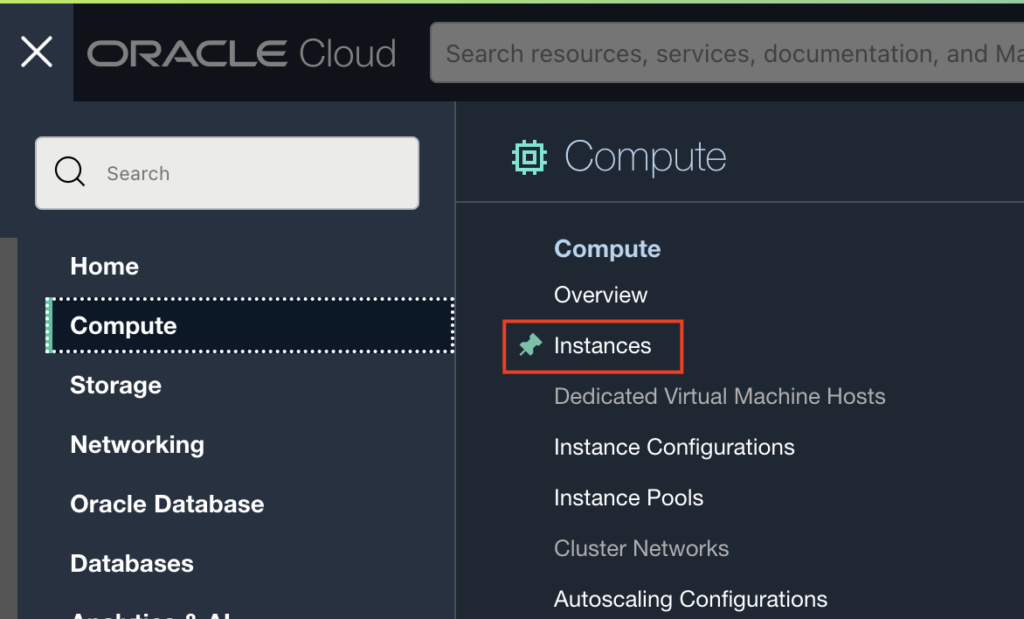
Navigate to Compute and then Instances
Select “Canonical Ubuntu 22.04” Image and “Ampere” Shape. Here
- Number of OCPU’s can be increased upto 4
- Amount of memory can be increased upto 24 GB
Download Private and Public SSH keys and then run chmod 400 private.key
Boot volume size can be increased upto 200 GB and then finally click on “Create” instance.
Installing Ubuntu Desktop
Run these below command to connect to OCI VM and then install Ubuntu desktop.ssh -i private.key ubuntu@<replace_with_public_ip_of_vm>
sudo apt update && sudo apt upgrade -y
sudo apt-get install ubuntu-desktop xrdp stacer -y
sudo passwd ubuntu
sudo reboot
Allowing RDP port on OCI VM to accept incoming requests
Login to cloud.oracle.com and navigate to your instance
Click on Subnet and open “Default security list”.
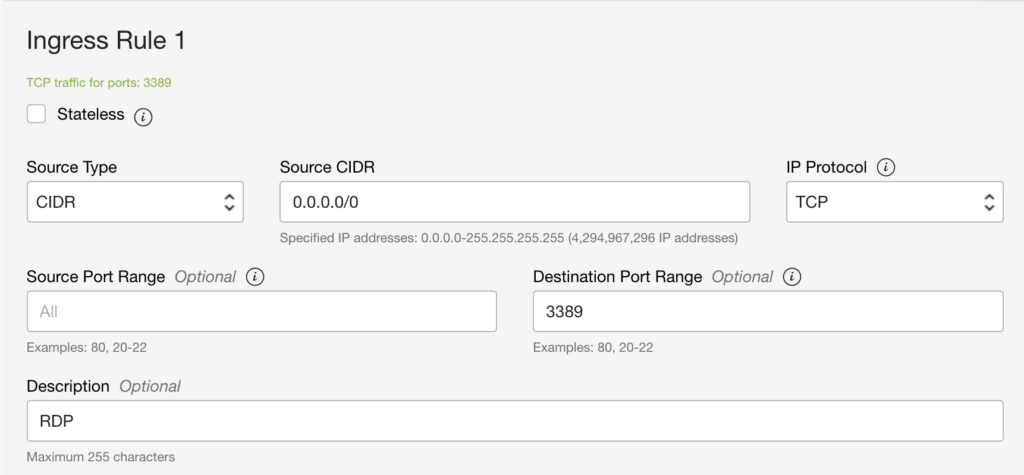
Add a new “Ingress Rule” to allow RDP connection to 3389 port
- Source CIDR: 0.0.0.0/0
- Destination Port Range: 3389
- Description: RDP
Mac users can download “Microsoft Remote Desktop” app from Apple store.